
Quick Order Guide


After logging in, look to the right of your "Welcome Customer Name" and click on "Quick Order"
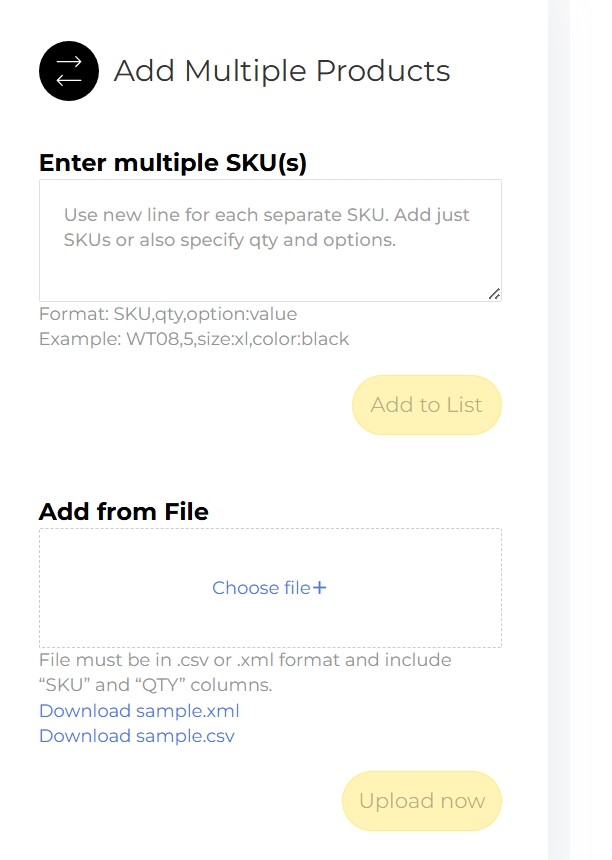
You have two options for Quick Order. Type the SKU or SKU,Qty under "Add Multiple Products". Hit enter between each SKU.
Or you can upload a .csv or .xml file from your computer directly into the second box, "Add a File".
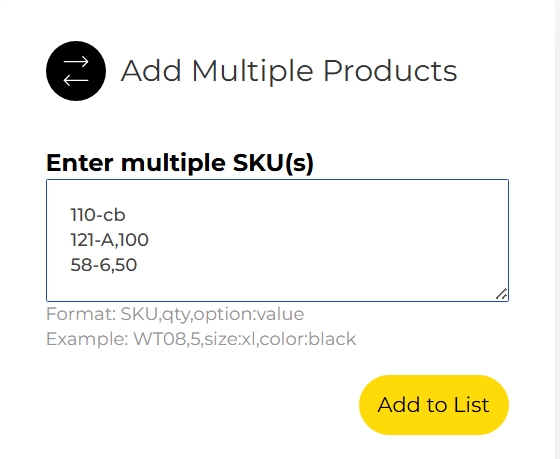
SKU #1 entered with no quantity, SKU #2 & #3, entered with a quantity. Click "Add to List".
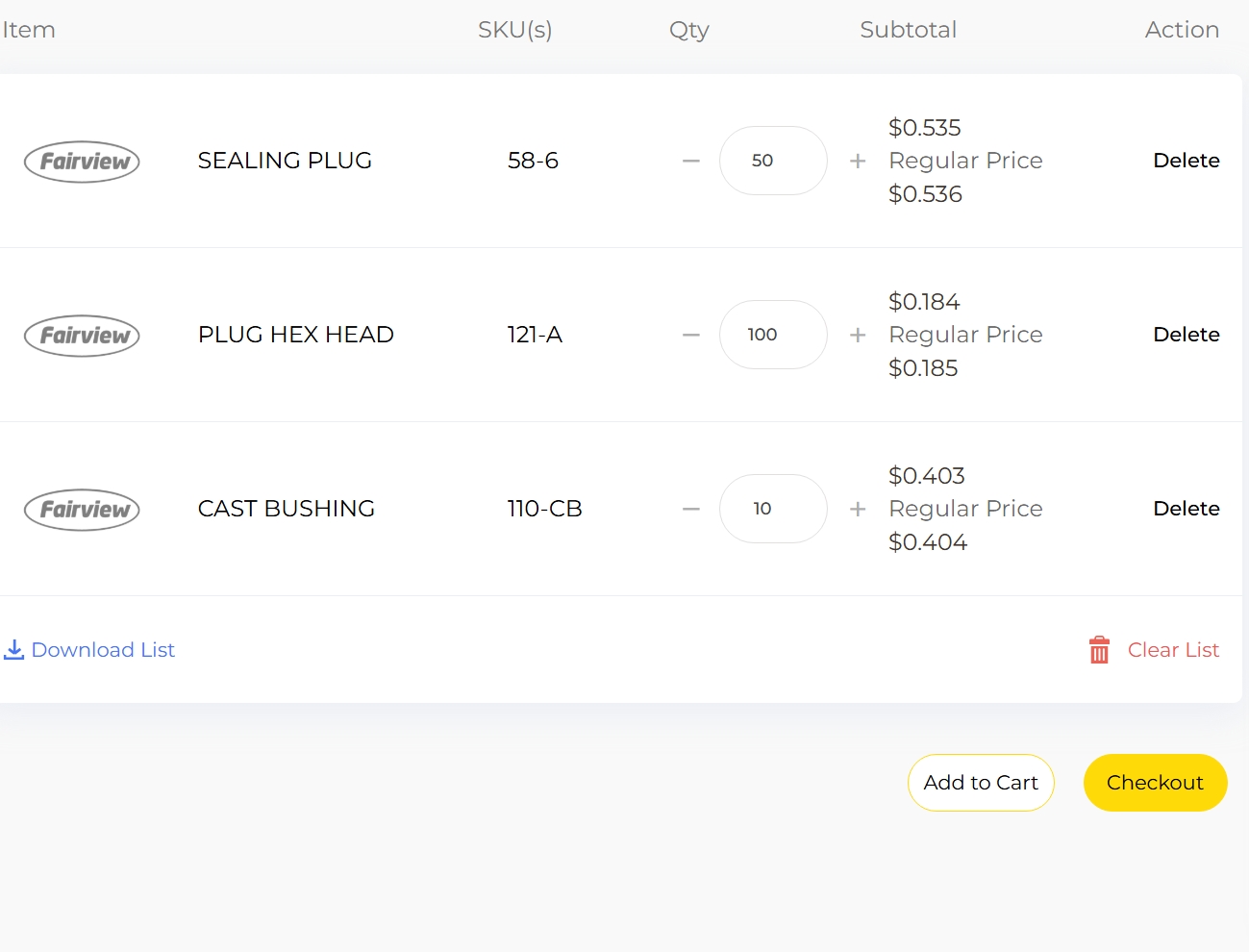
The items entered now appear as an 'order' where items and quantities can be reviewed, changed or deleted.
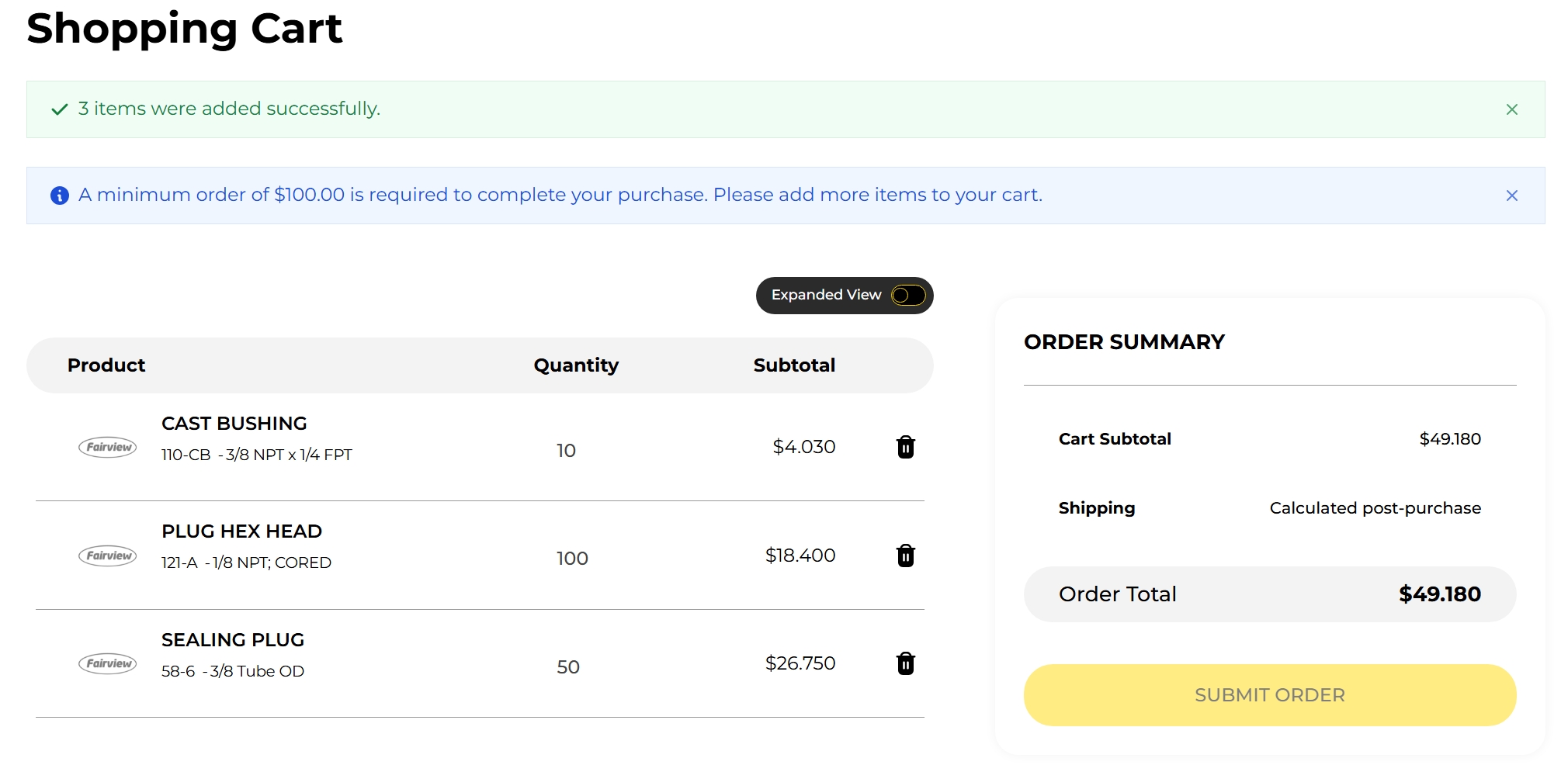
After clicking the "Check Out" button, the order is totalled. In this example the order does not meet the $100 minimum and cannot be submitted.
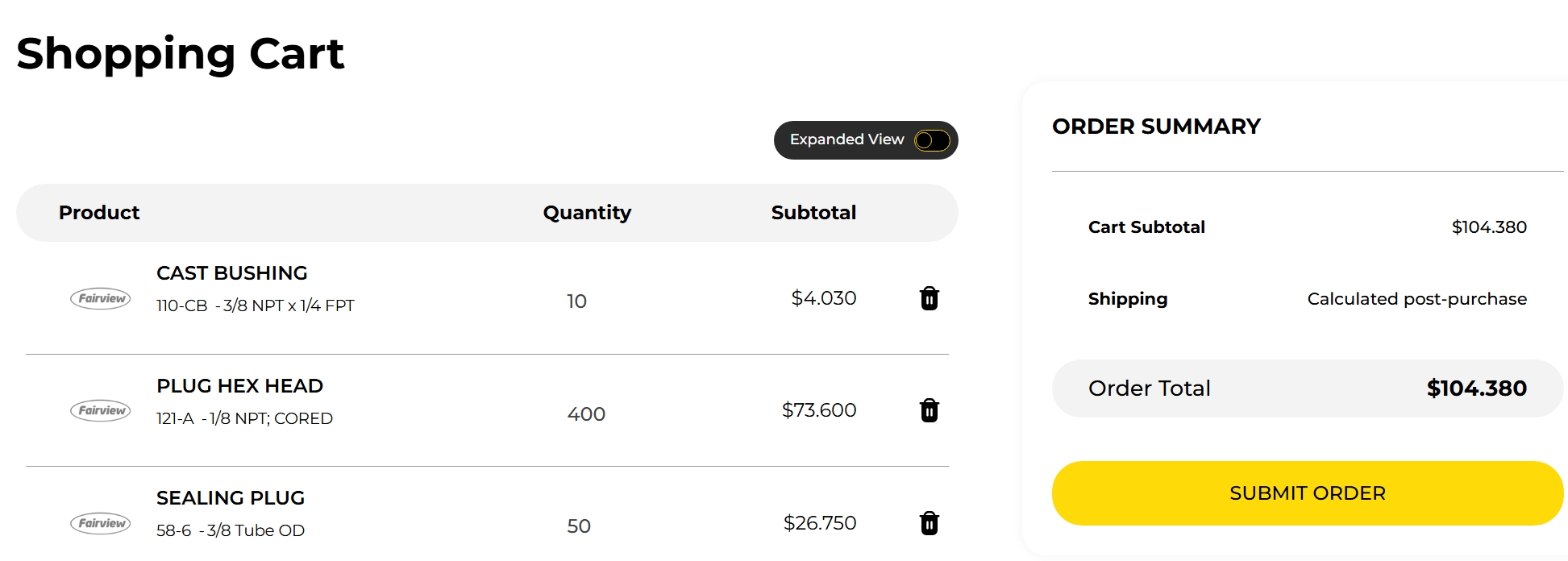
The quantity for SKU #2 is increased and the order is now above $100. Click the submit order button.
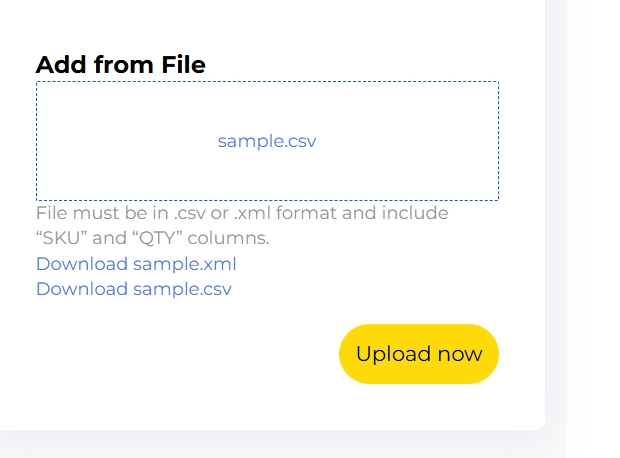
To upload a file, click on the "Choose file+" option, open the .csv or .xml file on your computer. The file will appear in the box, and you submit the order by clicking "Upload now".
Follow the Steps Below:
STEP 1: LOGIN
Log in to your account. At the top of the page, beside "Welcome, Customer Name", click Quick Order.
STEP 2: Add Products
Option 1: Enter Products Manually
- In the Add Multiple Products box, enter each SKU on a separate line.
- To order a single item, enter the SKU only.
- To specify a quantity, enter the SKU followed by a comma and the quantity (example:
SKU123,5).
- Press Enter after each SKU.
- Once all products have been entered, click Add to List.
Example:
- SKU #1 entered without a quantity (defaults to 1).
- SKU #2 and SKU #3 entered with quantities.
Option 2: Upload a File
- Under Add a File, click Choose File.
- Select your .csv or .xml file from your computer.
- Once the file name appears in the upload box, click Upload Now.
- Review the imported items and submit your order.
Tip: Uploading a file is the fastest way to place orders with multiple products at once.
STEP 3: Review Your Order
- After clicking Add to List, your products will appear in an order list.
- Review the items and quantities.
- You can update quantities or remove items as needed.
- When ready, click Check Out.
STEP 4: Submit Your Order
- Review the order total.
- If your order does not meet the $100 minimum order value, update the quantities as needed.
- Once the order total exceeds $100, click Submit Order.
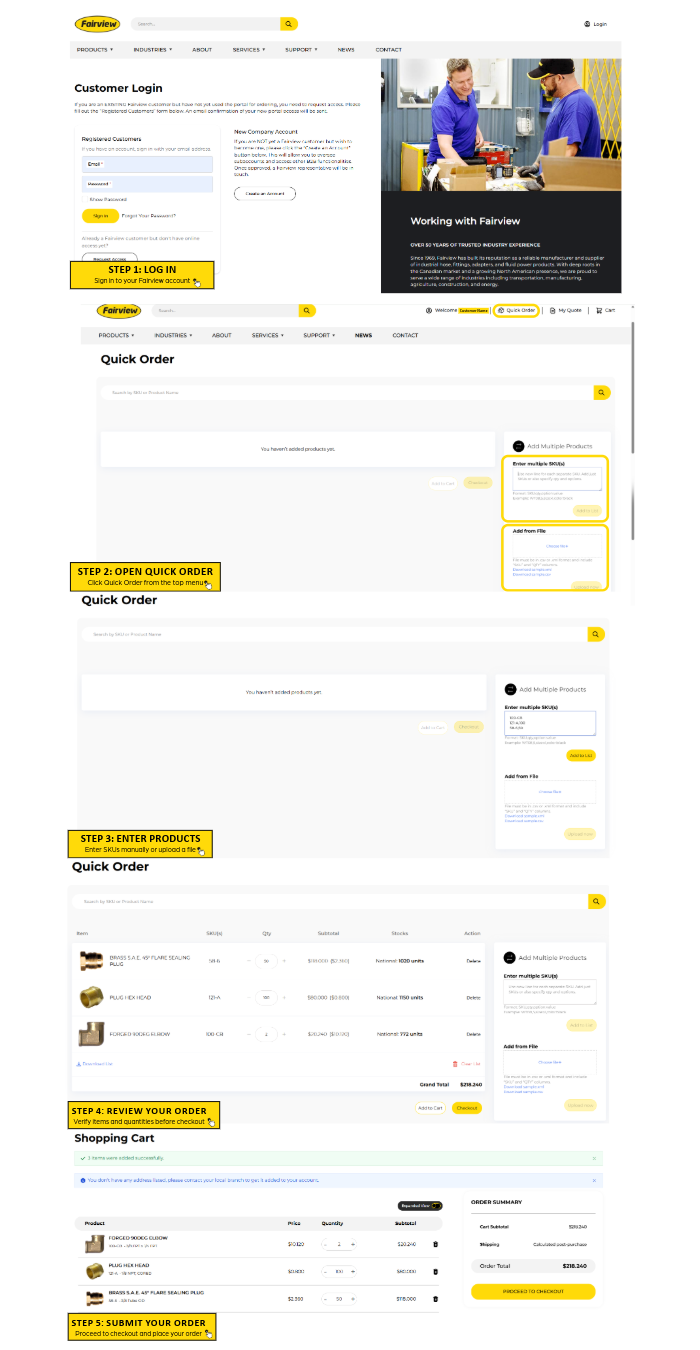
Follow the Steps Below:
STEP 1: LOGIN
Log in to your account. At the top of the page, beside "Welcome, Customer Name", click Quick Order.
STEP 2: Add Products
Option 1: Enter Products Manually
- In the Add Multiple Products box, enter each SKU on a separate line.
- To order a single item, enter the SKU only.
- To specify a quantity, enter the SKU followed by a comma and the quantity (example:
SKU123,5).
- Press Enter after each SKU.
- Once all products have been entered, click Add to List.
Example:
- SKU #1 entered without a quantity (defaults to 1).
- SKU #2 and SKU #3 entered with quantities.
Option 2: Upload a File
- Under Add a File, click Choose File.
- Select your .csv or .xml file from your computer.
- Once the file name appears in the upload box, click Upload Now.
- Review the imported items and submit your order.
Tip: Uploading a file is the fastest way to place orders with multiple products at once.
STEP 3: Review Your Order
- After clicking Add to List, your products will appear in an order list.
- Review the items and quantities.
- You can update quantities or remove items as needed.
- When ready, click Check Out.
STEP 4: Submit Your Order
- Review the order total.
- If your order does not meet the $100 minimum order value, update the quantities as needed.
- Once the order total exceeds $100, click Submit Order.
Watch The Insructions Video Below: